
How to Debug and Format JSON: The Ultimate Developer’s Guide for 2025
In the modern web ecosystem, JSON (JavaScript Object Notation) is the undisputed king of data interchange. From RESTful APIs and NoSQL databases like MongoDB to configuration files like package.json, JSON is everywhere.
However, as every developer knows, JSON is incredibly unforgiving. A single misplaced comma or a curly bracket out of alignment can crash an entire application, leading to the dreaded "Uncaught SyntaxError: Unexpected token" message.
In this guide, we will explore how to master JSON formatting, how to spot errors before they break your code, and why your choice of debugging tools matters for your security.
1. What is JSON Formatting and Why Does it Matter?
JSON is designed to be machine-readable, but in its raw, "minified" state, it is almost impossible for humans to parse. Minification removes all whitespace, tabs, and line breaks to save bandwidth. While this is great for performance, it’s a nightmare for debugging.
The Challenge: Dealing with Minified Data
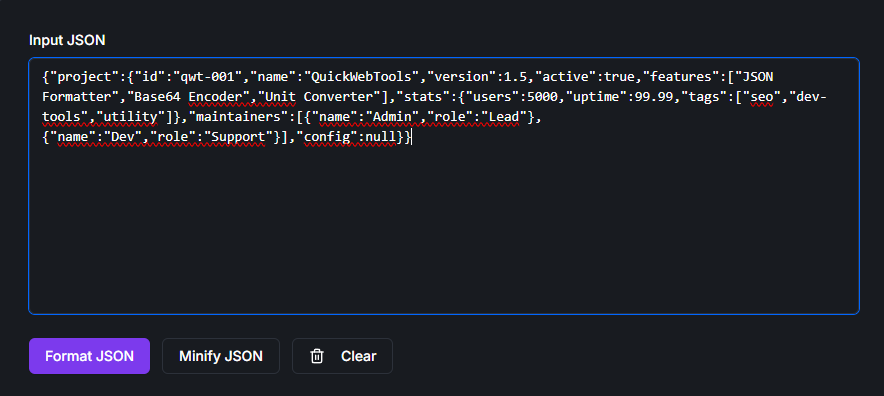
Formatting (or Beautifying) is the process of adding indentation and line breaks to the data to make the structure visible. Proper formatting allows you to:
- Quickly identify nesting levels in complex objects.
- Spot missing key-value pairs at a glance.
- Conduct more effective code reviews.
2. Common JSON Syntax Errors (And How to Fix Them)
Even seasoned engineers make mistakes with JSON syntax. Here are the most frequent culprits:
A. The Trailing Comma
Standard JSON does not allow a comma after the final element in an object or array.
- Wrong:
{"name": "John", "age": 30,} - Right:
{"name": "John", "age": 30}
B. Single Quotes vs. Double Quotes
Unlike JavaScript, JSON requires double quotes for both keys and string values. Single quotes will trigger an immediate validation error.
- Wrong:
{'id': 101} - Right:
{"id": 101}
C. Unquoted Keys
In standard JavaScript objects, you can often omit quotes around keys. In JSON, this is illegal.
- Wrong:
{status: "active"} - Right:
{"status": "active"}
3. How to Debug JSON Efficiently
When your console throws a JSON error, follow these three steps to resolve it:
- Use a Validator: Don't guess where the error is. Use a JSON Validator to pinpoint the exact line and character where the syntax breaks.
- Beautify for Clarity: If you are looking at a 10,000-character single-line string, you'll never find the logic error. Use a formatter to expand the data into a readable tree structure.
- Check Data Types: Ensure that numbers aren't wrapped in quotes and that booleans (true/false) are lowercase.
The Solution: Clean, Readable Structure
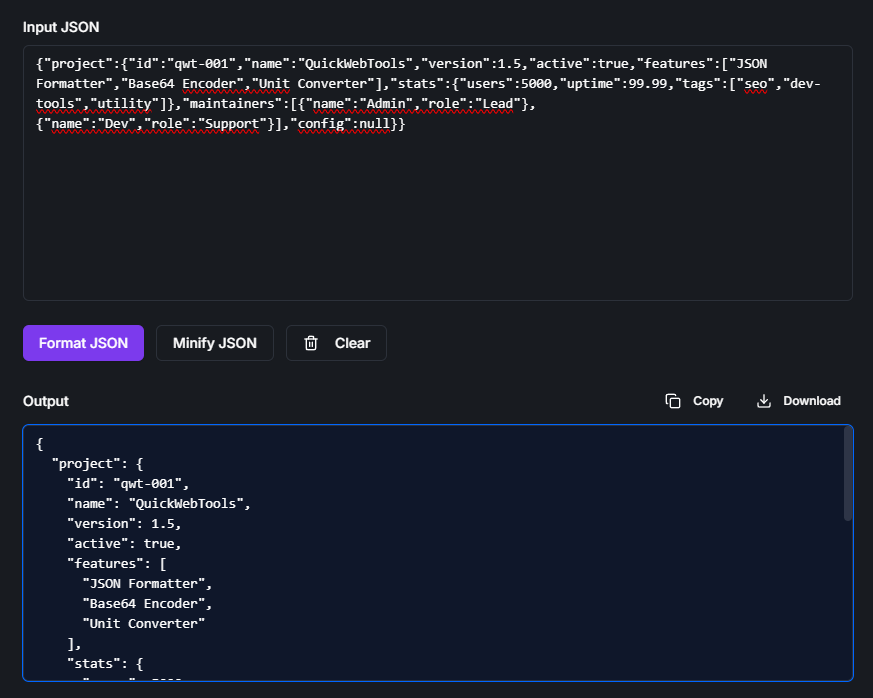
4. Security Warning: The Hidden Danger of Online Formatters
Most developers simply search for "JSON Formatter" and click the first result. However, many of these sites send your pasted data to their servers for processing.
Why is this a risk? If you are debugging an API response that contains User PII, Active Session Tokens, or API Keys, you are handing that data over to a third-party server.
At QuickWebTools.app, we built our JSON Formatter to be 100% client-side. This means the formatting happens entirely within your browser's memory. Your data never touches our servers.
5. Advanced JSON Tips for Power Users
Formatting MongoDB Exports
When exporting data from MongoDB, using a formatter helps in visualizing your document structure before importing them into a new collection.
Cleaning up package.json
A messy package.json can lead to Diff Checker. Running your config files through a standard formatter ensures consistent indentation (usually 2 spaces) across your entire team.
Conclusion
Mastering JSON is a fundamental skill for any web developer. By understanding the strict syntax rules and using the right tools, you can turn a frustrating debugging session into a quick fix.
Ready to clean up your code? Use our Secure JSON Formatter & Validator to beautify your data instantly and safely.